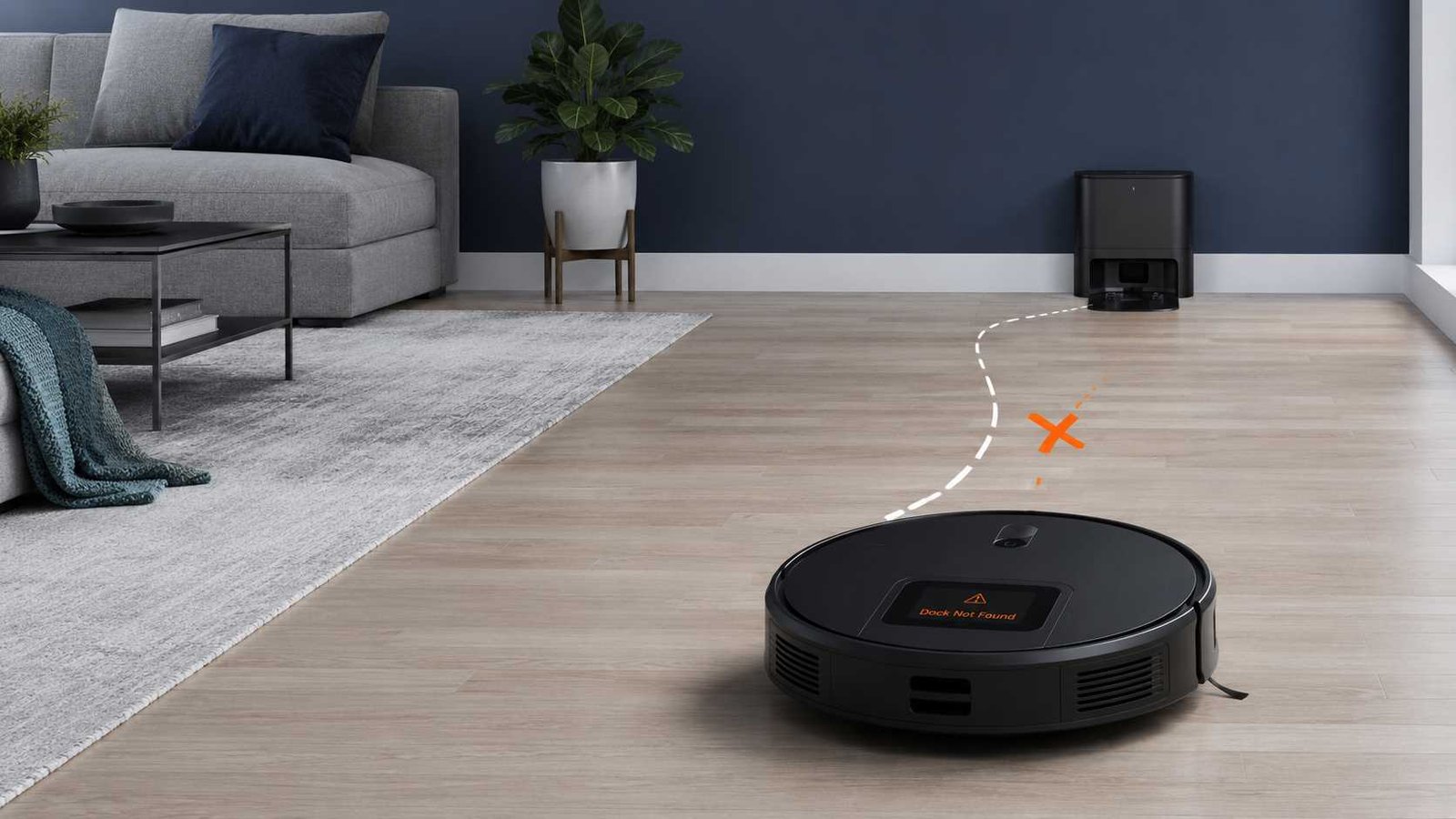
 When a robot vacuum cannot find its dock, it does not necessarily mean the robot is broken. The dock may have lost power, its approach may be blocked, the station may have moved, or the robot may have lost its position on the saved map. Dirty docking sensors, charging contacts, slipping wheels, reflective surfaces, and a weak battery can also contribute.
Start by confirming that the dock is connected to a working outlet and placed firmly on a flat floor with a clear approach. Then position the robot about 1 to 1.5 metres in front of the dock and command it to return.
Stop using the dock if its cable is damaged, the adapter overheats, liquid has entered the station, or the contacts appear burned or badly corroded.
Quick Answer
| Item | Details |
|---|---|
| Problem | Robot vacuum cannot locate or return to its charging dock |
| Appliance | Robot vacuum or robot vacuum-and-mop |
| Brands affected | Potentially any brand, including Roomba, Roborock, Eufy, Samsung, Xiaomi, Dreame, ECOVACS, LG, and Shark |
| Most common causes | Dock has no power, poor placement, blocked route, dirty sensors, moved dock, mapping problem, or dirty contacts |
| Safe first check | Confirm dock power, clear the approach, and test docking from a short distance |
| Repair difficulty | Usually easy when caused by placement or dirt; professional diagnosis may be required for hardware faults |
| Can it still be used? | Usually yes if it operates normally and can be charged manually |
| Stop using it when | The dock, cable, adapter, or contacts are damaged, wet, burned, or overheating |
| Professional help | Required when the robot cannot detect a powered dock from nearby or repeatedly fails after model-approved checks |
What Does “Cannot Find Dock” Mean?
A robot vacuum may show this problem in several ways:
- It wanders around until the battery runs out.
- It circles near the station but never approaches correctly.
- It returns to the place where the dock used to be.
- It reaches the dock, backs away, and tries again.
- It stops in front of the dock without charging.
- It reports “dock not found,” “unable to return,” or a numbered docking error.
- It returns to its starting position instead of the charging station.
These symptoms do not all have the same cause.
Cannot find the dock
The robot does not recognise the station or cannot navigate back to it. Power, placement, mapping, blocked signals, and route problems are the main areas to check.
Finds the dock but cannot connect
The robot reaches the station but cannot align its wheels or charging contacts. The dock may be unstable, tilted, obstructed, wet, or incorrectly assembled.
Docks but does not charge
The robot is physically in place, but charging does not begin. This points more toward dirty contacts, poor alignment, a power-supply problem, worn contact pins, or an internal charging fault.
How Does a Robot Vacuum Find Its Dock?
Docking methods vary by product family.
Infrared docking
Many robot vacuums use an infrared signal transmitted by the powered charging station. The robot searches for that signal when it needs to recharge.
Dust, protective packaging, nearby obstacles, direct sunlight, reflective surfaces, or a powerless dock can interfere with this process. LG specifically warns that direct sunlight, mirrors, glossy surfaces, and obstructions can affect selected docking systems. ra-based navigation
Camera-guided robots use visual landmarks and stored location information. A major change in lighting or furniture position may affect localisation on selected models.
The robot’s camera or visual docking target must also remain clean and unobstructed.
LiDAR and map-based navigation
LiDAR models create a map and record the station’s location. They may struggle to return when:
- The station was moved after the map was created.
- The robot was carried to another room.
- The robot started away from its dock.
- The robot cannot identify its current location.
- A closed door blocks the mapped route.
- The saved map is outdated or incorrect.
Xiaomi and Dreame both advise starting selected robots from their base and avoiding moving the robot during a cleaning task. c or random navigation
Simpler robots may search for the dock signal rather than following a precise saved route. They can have difficulty when the dock is far away, placed in another room, surrounded by furniture, or hidden behind a narrow entrance.
Most Common Reasons a Robot Vacuum Cannot Find Its Dock
1. The dock has no power
A robot may not be able to detect an unpowered charging station. The station can lose power because:
- The wall plug is loose.
- The adapter is disconnected from the dock.
- A station power switch is off.
- The outlet has stopped working.
- The cord is pulled partly out behind the station.
- The dock adapter has failed.
Samsung states that a Jet Bot cannot automatically locate and recharge at an unpowered station. Eufy and iRobot also recommend checking the station indicator, reconnecting the adapter, and testing the outlet when the base appears inactive. ssume the station is unpowered only because its light turns off. Some models switch the dock light off after a short period, and some regional docks do not have the same visible indicator design. he charging station is badly positioned
The dock should normally be:
- Against a stable wall
- On a flat, level surface
- In an open and accessible location
- Away from steps and drop-offs
- Free from obstacles in front and on both sides
- Secure enough that it does not slide when the robot climbs onto it
Exact clearance requirements vary. Roborock and selected Eufy models recommend roughly 0.5 metres on each side and 1.5 metres in front. Other Eufy models require more space, so the model manual should be treated as the final authority. ueezing the dock between furniture or placing it behind a table, curtain, pet bowl, storage box, or narrow doorway.
3. The dock moved during cleaning
Even a small change in the station’s position can confuse a robot that expects to find it at a saved location.
Check whether:
- Someone moved the dock while cleaning the floor.
- The power cable pulled the station sideways.
- The robot pushed the station backwards.
- The station mat or tray shifted.
- The dock was relocated without updating the map.
iRobot, ECOVACS, Xiaomi, and Dreame all identify a moved station as a possible cause of return-to-base problems. he robot did not start from the dock
Selected models use their starting position to establish the dock’s location. Starting a cleaning task in the middle of another room may prevent the robot from returning correctly.
This is particularly relevant when:
- The robot was carried upstairs.
- It was manually placed in a closed room.
- Cleaning started after the robot was removed for maintenance.
- The robot was moved while paused.
- A multi-floor map was not selected correctly.
Eufy’s official guidance for the L70 says the robot should start its cleaning cycle on the base and should not be manually moved during cleaning. Xiaomi gives similar advice for selected models. urniture or doors block the route
The robot may know where the station is but be unable to reach it.
Look for:
- Closed doors
- Chairs moved into the return path
- Shoes, toys, cables, or pet items
- Raised rug edges
- New furniture
- Temporary barriers
- Wet areas the robot is programmed to avoid
- A no-go zone covering the dock or access route
Roomba Error 1010, on applicable models, can occur when the robot can no longer detect or reach the dock because the environment changed, the path became blocked, or the station was moved or unplugged. he dock beacon or robot sensor is dirty
Dust can collect on:
- The dock’s signal-transmission window
- The robot’s front sensor
- A camera lens
- A visual docking target
- The bumper
- LiDAR sensor covers
- Cliff sensors near the dock approach
Roborock recommends cleaning the dock’s front signal area and the robot’s front sensor when the robot cannot locate its dock. iRobot also advises removing foreign material, stickers, tape, paint, or protective film that may block the docking target or bumper. the cleaning method approved for your model.
7. Charging contacts are dirty or misaligned
Dirty contacts are more likely to cause failed charging than failed navigation, but they can make a robot repeatedly dock, reverse, and try again.
Residue may build up on:
- Metal pads under the robot
- Spring-loaded pins on the dock
- Communication contacts
- Auto-empty station contacts
Eufy advises cleaning charging pins with a dry cloth and inspecting them for deformation or corrosion. iRobot recommends unplugging selected docks before cleaning their contacts with an approved lightly dampened cloth or melamine foam. he surrounding floor causes detection or traction problems
Selected models may struggle when the station is on:
- A black or very dark carpet
- High-pile carpet
- An uneven mat
- A slippery or wet floor
- A threshold
- A warped dock tray
- A surface that allows the station to move
Samsung advises against placing selected Jet Bot stations on dark flooring. Eufy recommends moving certain models from black or high-pile carpet to a hard floor. ECOVACS advises checking for water around the station tray because moisture may interfere with safe return and traction. irrors, windows, or sunlight interfere
Strong reflections can confuse selected infrared, camera, and laser-navigation systems.
Potential sources include:
- A mirror directly opposite the station
- Floor-to-ceiling glass
- Highly polished furniture
- Strong direct sunlight
- Reflective metal surfaces
LG recommends moving selected charging stations away from direct sunlight and highly reflective surroundings. Dreame also advises checking for mirrors or windows opposite the station on applicable models. The battery runs out before the robot gets home
A weak or poorly charged battery may not provide enough running time for the robot to search for its dock.
This is more likely when:
- The cleaning area is large.
- The robot repeatedly becomes stuck.
- The battery discharges unusually quickly.
- The dock was unavailable when the robot first tried to return.
- The robot begins cleaning with a low charge.
- The battery has significantly deteriorated.
A robot that powers off before reaching the station cannot complete the docking process. Eufy advises fully recharging the robot when it loses power before returning and checking for any voice alert that may indicate a separate fault. Drive wheels slip or stick
The robot may locate the dock but fail during its final approach.
Check externally for:
- Hair wrapped around the wheels
- Dirt reducing tyre grip
- A wheel that does not move freely
- A wet dock tray
- A station ramp that is not seated correctly
- The dock moving backwards
- A threshold immediately in front of the station
Dreame recommends checking for slipping, trapped, or stuck drive wheels when the robot has trouble returning. Samsung also says a station that wobbles or moves during docking may not be level. by-Step Troubleshooting
Work through these checks in order. Do not begin with a factory reset.
1. Confirm that the station has power
- Check that the adapter is firmly inserted into the dock.
- Check that the other end is firmly connected to the wall outlet.
- Turn on the station’s power switch if it has one.
- Look for the normal power indicator described in the manual.
- Test the wall outlet with another safe household device if necessary.
- Inspect the visible cord and plug for damage.
Do not open the adapter or station if it remains unpowered.
2. Place the dock correctly
Move the dock to:
- A flat, dry, hard surface
- A straight, stable wall
- An open part of the room
- A location without direct sunlight
- A place away from stairs
- A position with clear space in front and on both sides
Keep the station away from clutter, curtains, cables, pet bowls, and unstable rugs.
3. Check that the station cannot move
Push it gently by hand. It should remain flat and stable.
If the robot pushes it backwards:
- Straighten the station.
- Refit its tray or ramp.
- Organise the cable so it does not pull the station.
- Use the manufacturer-supplied floor attachment or anti-slip pad where provided.
- Do not use improvised adhesives that cover sensors, vents, or service panels.
4. Clear the full return route
Walk from the cleaning area to the station and look at the route from the robot’s height.
Open relevant doors and move:
- Power cables
- Shoes
- Toys
- Pet items
- Loose rugs
- Lightweight furniture
- Temporary boxes
- Objects covering mapped paths
Check the app for a no-go zone or invisible wall accidentally placed over the station.
5. Clean the docking sensors
Power off the robot and unplug the dock when required by the manufacturer.
Using the approved cloth:
- Wipe the dock’s signal window.
- Wipe the robot’s front sensor.
- Clean the camera or visual target where applicable.
- Remove any remaining protective film.
- Check for stickers, paint, tape, or residue on the bumper and station.
Do not spray cleaner directly onto sensors.
6. Clean the charging contacts
Clean the visible metal contacts on both the robot and station.
Check for:
- Dust
- Grease
- Dark residue
- Rust
- Recessed pins
- Bent contacts
- Burn marks
Do not scrape contacts with knives, screwdrivers, sandpaper, or metal tools.
7. Inspect the wheels and dock approach
Remove accessible hair and debris from the drive wheels according to the manual.
Dry any wet floor near the dock. Make sure the robot can approach without crossing a high rug edge, threshold, loose mat, or deformed tray.
8. Run a short-distance docking test
Place the robot approximately 1 to 1.5 metres in front of the powered dock, facing toward it. Use the robot’s return, home, recharge, or dock command.
Eufy recommends this type of test for the L70, while Dreame recommends testing from about one metre in front of the base. exactly what happens:
| Test result | What it suggests |
|---|---|
| Robot docks normally | Docking hardware probably works; check map, placement, route, or starting location |
| Robot turns away immediately | It may not detect the dock signal or expected map position |
| Robot approaches but backs away | Check contacts, tray, alignment, wheels, floor, and dock stability |
| Robot stops in front of the dock | Check charging contacts, station power, and final alignment |
| Robot ignores the dock completely | Dock power, beacon, robot sensor, or localisation may require further diagnosis |
| Robot repeatedly circles | Signal interference, reflections, map errors, or positioning problems may be involved |
9. Start a complete test from the dock
Manually place the robot correctly on the station and confirm that charging begins.
Then:
- Allow it to charge sufficiently.
- Start a small cleaning task from the dock.
- Do not move the robot or station.
- Keep the room accessible.
- Command the robot to return.
If it succeeds during this controlled test, the original problem was more likely environmental or map-related than an immediate hardware failure.
10. Check the map in the app
For map-based models, verify:
- The dock appears in the correct room.
- The station has not moved on the map.
- The correct floor map is selected.
- No-go zones do not block the approach.
- Rooms and doorways still match the physical layout.
- The robot has not created a temporary or duplicate map.
Restore a known-good map when the app and model support that option.
11. Restart the robot
Use the normal restart or reboot procedure from the exact model manual or app.
A restart can clear a temporary navigation or software problem without deleting the robot’s saved configuration.
Do not use a reset sequence copied from another model. Button combinations differ even within the same brand.
12. Update the software where appropriate
If the robot is app-connected, check for a manufacturer-issued firmware or app update. Software updates may address navigation or return-path problems on selected models.
This should follow the basic physical checks, not replace them.
13. Remap only after simpler checks fail
Consider creating a new map when:
- The dock was permanently relocated.
- The robot consistently returns to the old dock position.
- The map is visibly distorted.
- Rooms overlap or appear in the wrong place.
- Localisation repeatedly fails.
- Manufacturer guidance recommends remapping.
Start the new mapping run from the dock and avoid moving either the robot or station.
Does a Robot Vacuum Need Wi-Fi to Find Its Dock?
Not always.
Wi-Fi may be required for app control, map management, schedules, remote commands, firmware updates, or advanced settings. However, loss of Wi-Fi is not a universal explanation for physical docking failure.
Roborock states that supported robot vacuums can perform basic cleaning and return to their dock using the robot’s controls without a Wi-Fi connection. Other brands and features may behave differently, so check the instructions for the exact model. -Fi when:
- The dock command cannot be sent through the app.
- The saved map is unavailable.
- The robot appears offline.
- A map-based feature is not loading.
- The manufacturer specifically links the error to network communication.
Do not begin by resetting the router when the station itself has no power or the robot cannot detect it from one metre away.
When the Robot Finds the Dock but Cannot Climb Onto It
If the robot reaches the station but repeatedly reverses, the problem is probably no longer basic dock detection.
Check:
- Is the station flat and stable?
- Is its ramp or removable tray fitted correctly?
- Are the robot’s wheels clean and dry?
- Is the floor wet or slippery?
- Is a rug edge lifting the front of the robot?
- Are the contacts clean and level?
- Is the station being pushed backwards?
- Is the dock placed against an uneven skirting board?
Selected Eufy omni stations require the tray to be correctly seated, while ECOVACS advises drying water around the tray and floor. the Robot Docks but Does Not Charge
A robot can physically reach the station without making a reliable electrical connection.
Try these safe checks:
- Confirm the dock is powered.
- Reposition the robot so its contacts align.
- Clean both sets of contacts.
- Check whether spring-loaded pins move normally without forcing them.
- Look for bent, recessed, rusty, or burned contacts.
- Confirm that the dock tray is correctly installed.
- Leave the robot in place long enough for the normal charging indicator to appear.
Xiaomi identifies dirty charging contacts as a likely cause when a robot finds the dock but cannot charge. Eufy also recommends checking for dirty, deformed, or rusty pins. ubleshooting if the dock becomes hot, smells burned, sparks, makes abnormal electrical noise, or has visible damage.
Brand and Model Differences
Roomba
On applicable Roomba models:
- Error 18 means the robot cannot return to its Home Base or starting position.
- Error 1010 means the robot can no longer detect or reach its dock during a mission.
Official checks include dock power, obstacles, charging contacts, station movement, docking targets, and environmental changes. Some EMEA Roomba Combo docks do not use the same visible dock light as other models. rock
Roborock recommends placing selected docks against a wall with approximately 0.5 metres of space on either side and 1.5 metres in front. It also advises cleaning the front signal area of the station and the robot’s front sensor. ty and wash stations may have additional beacon, tray, tank, and dock-recognition requirements.
Eufy
Eufy requirements vary considerably by series.
Selected L-series models use a short-distance test from about 1.5 metres. Bounce-series models may require more open space around the station. Eufy also warns against black or high-pile carpet near the base on applicable models. ted L70, G, and G+ models, voice alert Error 21 can indicate that objects are blocking the charging-base area. ung Jet Bot
Samsung recommends a flat, level surface and easy access to the docking station. Selected Jet Bot guidance warns against dark-coloured flooring and says an unstable station may prevent correct docking. mi
Selected Xiaomi models may fail to return when the dock is poorly positioned, the robot did not start from the station, the robot was moved during cleaning, sensors are dirty, or the station has no power. me
Dreame recommends checking base power, open clearance, mirrors or windows opposite the station, drive-wheel traction, LiDAR operation, and whether the robot can return from one to two metres away. A factory reset is presented as a later step, not the first response. ACS DEEBOT
ECOVACS advises checking whether the station was moved or disconnected, clearing the surrounding area, and drying water from the tray and nearby floor. LG advises checking dock power, surrounding obstacles, station stability, infrared-signal areas, direct sunlight, glass, mirrors, and glossy surfaces. d You Reset the Robot Vacuum?
A reset should not be the first step.
There are usually several different actions:
Restart or reboot
This turns the robot’s operating system off and back on. It may clear a temporary error without erasing maps or settings.
Wi-Fi reset
This removes or refreshes network settings. It does not necessarily repair a docking sensor, powerless station, dirty contact, or blocked route.
Map reset
This removes or replaces stored navigation data. It may help after the dock is permanently relocated or the map becomes inaccurate.
Factory reset
This restores factory settings and may remove maps, schedules, room names, preferences, or account-related setup, depending on the model.
Use only the exact procedure published for the full model number. Dreame’s official docking guidance places a factory reset near the end of troubleshooting, after power, placement, sensor, wheel, and restart checks. ble Faulty Parts
The following parts may be involved when safe external checks do not solve the problem.
| Possible part | Possible symptom | User-level check | Next action |
|---|---|---|---|
| Dock power adapter | No dock power or indicator | Check connections and a working outlet | Replace only with an approved part or contact support |
| Dock signal beacon | Robot ignores dock from nearby | Clean signal window and repeat short test | Manufacturer diagnosis |
| Charging contacts | Robot docks but reverses or will not charge | Clean and inspect visible contacts | Replace damaged contacts through authorised service |
| Station tray or ramp | Robot cannot climb or align | Refit removable tray correctly | Replace damaged tray |
| Drive-wheel assembly | Robot slips, turns, or cannot complete approach | Remove accessible debris | Professional repair if wheel remains weak or stuck |
| Camera, LiDAR, or front sensor | Robot cannot localise or detect station | Clean accessible sensor covers | Professional diagnosis |
| Battery | Robot powers off before reaching dock | Fully charge and monitor runtime | Battery assessment or replacement |
| Internal charging electronics | Dock and contacts appear normal, but charging fails | No safe internal test | Qualified repair or manufacturer support |
A failed short-distance docking test does not identify one exact part. It only narrows the problem toward station power, signal detection, alignment, mobility, or hardware.
When to Contact the Manufacturer or a Technician
Contact support when:
- The powered dock cannot be detected from one to two metres away.
- The robot repeatedly reports the same docking error.
- The station has no power despite a working outlet and secure connection.
- The adapter, cord, plug, or station is damaged.
- Contacts are burned, badly corroded, recessed, or loose.
- A drive wheel slips, locks, or makes abnormal noise.
- LiDAR does not rotate normally on a model where it should.
- The robot repeatedly loses or corrupts its map.
- Docking fails after a model-approved restart and controlled test.
- Liquid entered the robot or station.
- The robot remains within its warranty period.
For some base-station faults, the service centre may need both the robot and station because the two components must be tested together. Dreame, for example, instructs customers with certain return-to-base and charging problems to send both components for service. y Warnings
Disconnect the dock before cleaning its exterior, sensors, tray, or charging contacts when instructed by the manufacturer.
- Never open a mains-powered charging station.
- Do not test live voltage unless you are appropriately qualified.
- Do not bypass switches, sensors, interlocks, or charging protections.
- Do not spray water or cleaner directly onto the dock.
- Do not clean contacts using metal tools or abrasive paper.
- Keep the station and surrounding floor dry.
- Stop using damaged or overheating power equipment.
- Use the correct manufacturer-approved adapter for your model and region.
- Keep charging stations away from stairs where the robot could fall during docking.
Samsung advises unplugging selected Clean Stations before cleaning, while iRobot instructs users to unplug applicable docks and wait before cleaning their charging contacts. ntly Asked Questions
Why does my robot vacuum wander instead of returning to its dock?
The robot may not detect the dock’s powered signal, may have lost its map position, or may be unable to reach the station because the route changed. Check dock power, placement, obstacles, sensors, and whether the station moved.
Why does the robot find the dock and then back away?
This commonly points to final alignment rather than whole-home navigation. Check charging contacts, drive wheels, dock stability, the station tray, floor moisture, and whether the robot can climb the ramp without slipping.
Should the robot vacuum start cleaning from its dock?
On many map-based and selected Eufy, Xiaomi, Roborock, and Dreame models, starting from the station helps the robot record or confirm the dock’s position. Starting elsewhere or carrying the robot during cleaning can prevent a successful return. the robot vacuum need Wi-Fi to return to the dock?
Not necessarily. Some robots can perform basic cleaning and return-to-dock operations without Wi-Fi. Wi-Fi may still be needed for app commands, maps, schedules, and advanced functions. d I move the dock to another location?
Move it when the existing location is cramped, uneven, reflective, exposed to direct sunlight, on unsuitable carpet, or near a threshold. After moving it, place the robot on the new station and begin the next cleaning or mapping task from there.
Should I delete the map when the dock moves?
Not immediately. First place the robot on the relocated dock and check whether the app updates the station position. Restore or recreate the map only when the robot continues returning to the old location or cannot localise itself.
Can a weak battery prevent the robot from finding the dock?
Yes. A robot with insufficient runtime may power off before completing its search or return route. Fully charge it and check whether it repeatedly shuts down early. A severe runtime reduction may require battery assessment.
Is it safe to use the robot if it cannot find its dock?
It is usually safe to run a supervised cleaning task if the robot operates normally and can be manually charged. Do not use the dock when its cord, adapter, contacts, or casing are damaged, wet, burned, or overheating.

Emily Carter is an Australian home-appliance safety editor with 9 years of experience researching washers, air conditioners, refrigerators, and coffee machines. She checks troubleshooting steps for accuracy, regional model differences, and homeowner safety before publication.