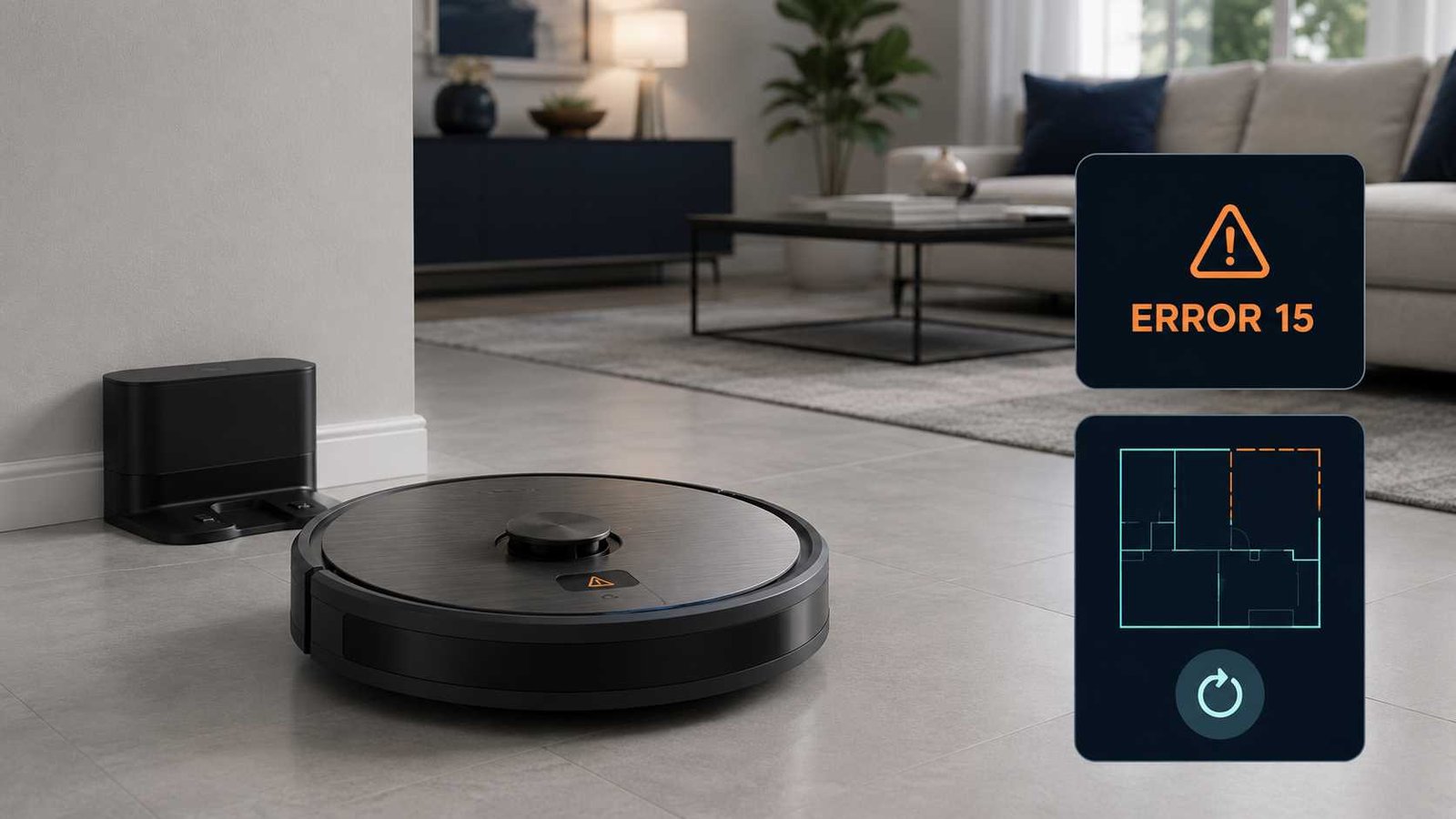
 Roomba Error 15 means the robot detected an internal problem. On some models, iRobot describes it as an internal board or navigation error. In other cases, the robot may have already recovered and is only reporting what happened.
Start by pressing the CLEAN or main robot button once. If the message returns, reboot the Roomba using the correct procedure for its model family. A normal reboot does not erase maps, schedules, or saved preferences.
Error 15 is not automatically proof of a damaged Smart Map. However, if it happens only during room-specific or zone cleaning, restoring an earlier map or creating a new mapping run may help. Stop using the robot and contact support if it repeatedly restarts, cannot finish a short cleaning job, has visible liquid damage, or develops a battery or charging problem.
Roomba Error 15 Quick Answer
| Item | Details |
|---|---|
| Error code | Error 15 |
| Brand | iRobot Roomba |
| Appliance | Robot vacuum or robot vacuum-mop |
| General meaning | An internal robot error |
| Model-specific descriptions | Internal board error, internal navigation error, or a temporary internal event |
| Safe first step | Press CLEAN or the main button once |
| Next step | Reboot using the correct model procedure |
| Does rebooting delete maps? | No |
| Is it always a map problem? | No, but map recovery may help on compatible models |
| Repair difficulty | Rebooting is easy; internal diagnosis requires professional support |
| Can the robot still be used? | Usually yes after a one-time error if it returns to normal operation |
| When to contact support | When the error returns after rebooting or during every job |
A one-time Error 15 followed by normal cleaning may not require repair. Repeated errors deserve further troubleshooting because the underlying issue could involve software, navigation data, battery communication, or an internal electronic component.
What Does Roomba Error 15 Mean?
The exact wording depends on the Roomba family.
iRobot’s general guidance says Error 15 means the robot experienced an internal error and may have corrected the condition itself. The robot reports the error afterward so the owner knows that an interruption occurred.
Official model charts provide more specific descriptions:
- Roomba i Series: Internal board error
- Roomba s Series: Internal navigation error
- Roomba j Series and Combo 10 Max: Internal error that the robot may have recovered from
- Some older documentation: Internal communication error
These descriptions do not necessarily contradict each other. The code covers an internal event, while the affected internal function can vary by model.
Is Error 15 always a Smart Map error?
No. Error 15 is an internal error code, not a dedicated map-corruption code.
A saved map becomes a more likely factor when the robot:
- Cleans everywhere normally but fails during selected-room cleaning
- Stops when sent to a particular Clean Zone
- Began showing the error after the floor plan was edited
- Displays an incorrect room layout
- Cannot locate itself after starting from the dock
- Finishes ordinary cleaning but fails during map-directed jobs
For j Series and Combo 10 Max robots, iRobot specifically recommends restoring an earlier Smart Map if Error 15 remains after the normal reboot and battery-related checks.
What to Do When Error 15 Appears Once
When Error 15 appears only once, avoid immediately deleting maps or factory-resetting the robot.
- Place the Roomba on a flat, dry floor.
- Press the CLEAN or main button once.
- Allow the robot to restart the mission.
- Run a short cleaning test in an open area.
- Watch for another unexpected restart or Error 15 message.
If the robot completes the test normally, the error may have been temporary. Continue monitoring it during the next few jobs.
If Error 15 returns, perform a full reboot using the correct model procedure.
How to Reboot a Roomba After Error 15
A reboot restarts the robot’s software and clears many temporary faults. It is different from a factory reset and does not delete Smart Maps, schedules, favourites, or other saved preferences.
Reboot through the app
App menu names depend on which iRobot application supports the robot.
For models using the newer Roomba HOME App:
- Open the Robots tab.
- Select the three dots in the upper-right corner.
- Choose Reboot Roomba.
- Confirm Reboot Roomba.
For models using the classic iRobot HOME App:
- Open Product Settings.
- Select Reboot Roomba.
- Confirm the reboot.
The app-based method is useful when the robot remains connected and responsive. Use the manual button method when the app cannot communicate with it.
Manual reboot instructions by model
Take the robot off its dock before using the manual button procedure unless the owner’s guide for your model says otherwise.
| Roomba model family | Manual reboot procedure |
|---|---|
| Roomba i Series | Hold CLEAN for about 20 seconds |
| Roomba j Series | Hold the main button for about 9 seconds |
| Roomba Combo 10 Max | Hold the main button for about 9 seconds |
| Roomba s Series | Hold CLEAN for about 20 seconds |
| Wi-Fi 800 and 900 Series | Hold CLEAN for about 10 seconds |
| Roomba Essential | Hold HOME and SPOT for about 12 seconds |
| Non-Wi-Fi 500, 600 and 700 Series | Hold HOME and SPOT for about 10 seconds |
| Roomba e Series | Hold HOME and SPOT for about 10 seconds |
| Roomba Mini, 100/1000, 200/2000, Plus 400, Plus 500 and Max 700 | Hold POWER for about 10 seconds; follow the robot’s instruction to turn it back on |
| Selected Roomba Combo models with a power switch | Open the top cover, turn the switch off, wait 10 seconds, then turn it on |
During rebooting, compatible models may show a rotating white light and play a tone or voice message. The process can take around 90 seconds, so do not repeatedly press buttons while the robot is restarting.
Important: Do not use a random button sequence from another Roomba family. Holding the wrong buttons may start Wi-Fi setup, child lock, or a factory-reset process instead of a reboot.
Reboot Versus Factory Reset
These actions are not interchangeable.
| Action | Deletes maps? | Deletes schedules and preferences? | When to use |
|---|---|---|---|
| Press CLEAN to restart a job | No | No | After a one-time error |
| Reboot the robot | No | No | When Error 15 returns |
| Restore an earlier Smart Map | Replaces the current map version | No | When a recent map update appears incorrect |
| Delete and recreate a map | Yes, for that map | Map-related schedules may need updating | When map recovery fails |
| Factory reset | Usually yes unless compatible maps are saved | Yes | Last resort or account-transfer procedure |
iRobot recommends contacting Customer Care before performing a factory reset just to clear an error. A factory reset removes the robot from the account and deletes personal settings stored on the robot.
Compatible Imprint Smart Map models may show a Save maps during factory reset option. When enabled, customised maps can be saved to the account for later retrieval. This feature is not available on every robot, and newer LiDAR-based Roomba families cannot use the same map-saving and retrieval system.
What to Check When Roomba Error 15 Keeps Returning
Use the following order. It avoids deleting data before simpler possibilities have been ruled out.
1. Confirm the robot has enough charge
Place the Roomba correctly on its charging dock and allow it to charge. Unstable power or poor charging contact can make troubleshooting unreliable.
If the robot also displays a charging error, treat that as a separate problem rather than assuming Error 15 caused it.
2. Perform the correct reboot once
Use the model table above. Wait for the reboot to finish before starting another job.
Repeatedly rebooting the robot without testing it does not identify whether the fault is related to the map, battery, software, or internal electronics.
3. Run a simple Clean Everywhere job
Start the robot from its charging station and select a whole-area cleaning job.
If the robot completes Clean Everywhere but fails when sent to one room or zone, the saved map or directed-cleaning data becomes more suspect.
If it fails during every type of job, the problem is less likely to be limited to one room divider or Clean Zone.
4. Check the cleaning environment
Before testing the map:
- Remove cords, clothing, pet waste, and loose objects.
- Open doors to rooms included in the map.
- Make sure there is a clear route away from the dock.
- Turn on room lights for camera-based models.
- Gently wipe visible camera and sensor windows with a clean, dry cloth.
- Do not move the robot after starting a mapped job.
iRobot explains that many Imprint Smart Map robots use visual landmarks and may struggle to locate themselves in poor lighting. Starting from the charging station also gives the robot a known reference point.
5. Consider the battery only when the model supports removal
The j Series and Combo 10 Max Error 15 guidance includes removing and reinstalling the battery before proceeding to map recovery. Follow only the battery procedure in the owner’s guide for your exact model.
Do not open the robot beyond normal user-removable covers. Stop if battery access requires disconnecting wires, removing sealed panels, or performing major disassembly.
6. Check whether the error is linked to one map
Try to identify a repeatable pattern:
- Does Error 15 happen only in one room?
- Does it occur only with a scheduled job?
- Does it happen after the robot recharges and resumes?
- Does Clean Everywhere work?
- Does a selected zone fail?
- Is the map visibly distorted or missing a room?
A repeatable map-related pattern supports restoring or recreating the Smart Map. A random error during every job points more strongly toward software, power, or an internal robot fault.
How to Restore a Previous Roomba Smart Map
If the current map appears wrong, iRobot allows compatible robots to replace it with a map from an earlier successful cleaning report.
- Open the iRobot HOME App.
- Go to History.
- Select a successful Clean Map Report from before the problem started.
- Select the three dots in the upper-right corner.
- Choose Update Smart Map.
- Confirm the change.
- Start the next job from the charging dock.
The map update cannot be undone with a simple back button, but another Clean Map Report can be selected later. If the robot cannot complete any mission successfully, the restoration feature may not work. In that case, run a new mapping mission or create a replacement map.
How to Create a New Smart Map
Delete and recreate the map only after rebooting and attempting to restore a known-good version.
For compatible models:
- Open the app’s map section.
- Select Create a New Smart Map.
- Choose Start Mapping Run.
- Clear the floor of cords and small hazards.
- Turn on adequate lighting.
- Allow the robot to finish and return to its dock.
- Review room dividers and names before creating schedules.
A mapping run focuses on learning the floor plan and usually uses less battery than cleaning while mapping. The robot generally needs at least one complete mission before the new map can be customised.
Roomba i3, i4 and i5 map limits
Roomba i3, i4, and i5 models support only one Smart Map. Their map also does not update during ordinary cleaning in the same way as maps on some higher-level models.
To remap the home or map a different floor, the existing Smart Map must be deleted first. These models also do not support Clean Zones.
Other Imprint Smart Map models
Models such as selected i6, i7, i8, s9, and j Series robots support more advanced features, including multiple maps, directed room cleaning, and zones. Feature availability still depends on the exact model, software version, account, and region.
Possible Causes of Repeated Error 15
| Possible cause | What it means | Homeowner action |
|---|---|---|
| Temporary software interruption | The robot encountered an internal event but recovered | Restart and reboot |
| Incorrect or outdated map data | The robot struggles to match its surroundings to the saved map | Restore an earlier map |
| Poor visual navigation conditions | Low light or a dirty camera makes location recognition difficult | Improve lighting and clean visible sensors |
| Directed-cleaning conflict | A room divider or zone does not match the physical layout | Test Clean Everywhere and review the map |
| Battery connection problem | Power or battery communication may have been interrupted | Follow official battery instructions where supported |
| Internal board fault | An electronic board may not communicate correctly | Contact iRobot support |
| Internal navigation fault | Navigation hardware or software cannot complete the job | Reboot, test a new map, then request service |
The final two possibilities cannot be confirmed from Error 15 alone. Do not order a motherboard, camera, wheel module, battery, or navigation component solely because the robot displayed this code.
Should You Replace Any Parts?
Error 15 does not identify one guaranteed failed part.
On the i Series, the official description points to an internal board error. On the s Series, it points to internal navigation. These descriptions are useful for support diagnosis, but they do not prove that the board or navigation hardware must be replaced. Software, power, connection, and map conditions should be considered first.
Before contacting support, collect:
- The full Roomba model number
- The serial number
- The app version
- The robot software version
- The time and date of the failed job
- Whether the error occurs during Clean Everywhere
- Whether it occurs only in selected rooms or zones
- A screenshot of the affected Clean Map
- The steps already attempted
This information can help iRobot distinguish a mapping problem from a persistent internal fault.
When to Contact iRobot Support
Contact iRobot Customer Care when:
- Error 15 returns after the correct reboot
- The robot displays Error 15 during every job
- The robot repeatedly restarts or ends jobs early
- A restored map does not help
- A completely new map does not help
- The robot cannot finish a short open-area test
- The robot no longer charges normally
- There is visible liquid or impact damage
- The battery appears damaged
- The app reports additional internal or charging errors
If the robot is still under warranty, avoid opening internal panels or fitting unverified electronic parts before speaking with the manufacturer.
Safety Warnings
Stop troubleshooting if the robot or battery becomes unusually hot, smells burnt, shows swelling, or has visible liquid damage. Disconnect the charging dock from the wall when it is safe to do so and seek manufacturer support.
Do not:
- Test internal circuits with the robot powered
- Open the control-board compartment
- Bypass battery or charging protections
- Install an incompatible battery
- Wash the robot body with water
- Pour cleaning liquid into a vacuum-only model
- Continue operating a robot with damaged charging contacts
Error 15 is primarily an internal-error notification. Safe troubleshooting should remain limited to restarting, rebooting, cleaning accessible sensors, checking the environment, following approved battery instructions, and managing the Smart Map.
Frequently Asked Questions
Can I continue using my Roomba after Error 15?
You can run a short test if the error appeared once and the robot returned to normal. Stop repeated use and contact support if the code returns during every cleaning job or the robot repeatedly restarts.
Does Roomba Error 15 mean the motherboard has failed?
Not necessarily. The i Series chart calls it an internal board error, but Error 15 alone does not prove that the board requires replacement. Rebooting, software behaviour, power stability, and map-related problems should be checked first.
Will rebooting my Roomba delete its map?
No. iRobot states that a normal reboot does not delete maps, schedules, or preferences. A factory reset is the action that can erase account and robot data.
Why does Error 15 happen only when cleaning one room?
The robot may be having difficulty matching that room, route, divider, or zone to the saved Smart Map. Test Clean Everywhere, start from the dock, restore a previous map, and recreate the affected map if necessary.
Should I delete the Smart Map immediately?
No. Reboot the robot first. If the problem appears map-related, restore a previous successful Clean Map before deleting the current map. Deletion should be a later step because room names, dividers, and zones may need to be recreated.
How long should I hold the CLEAN button?
It depends on the model. The i and s Series use approximately 20 seconds, Wi-Fi 800 and 900 Series use approximately 10 seconds, and j Series robots use approximately 9 seconds. Other models may use HOME and SPOT instead.
Can poor Wi-Fi cause Error 15?
Error 15 is not officially defined only as a Wi-Fi error. A robot may still have app or cloud-connection problems, but the official Error 15 descriptions focus on an internal robot, board, communication, or navigation event.
What should I do if Error 15 remains after creating a new map?
A successful new map makes an old-map problem less likely. If the code continues, stop deleting or resetting data and contact iRobot with the model number, software version, job history, and troubleshooting steps already completed.
Error Code Vault is an independent informational website and is not affiliated with, authorised by, or endorsed by iRobot. Roomba and related product names belong to their respective owner. Always confirm procedures in the owner’s guide for your exact model.

Emily Carter is an Australian home-appliance safety editor with 9 years of experience researching washers, air conditioners, refrigerators, and coffee machines. She checks troubleshooting steps for accuracy, regional model differences, and homeowner safety before publication.