
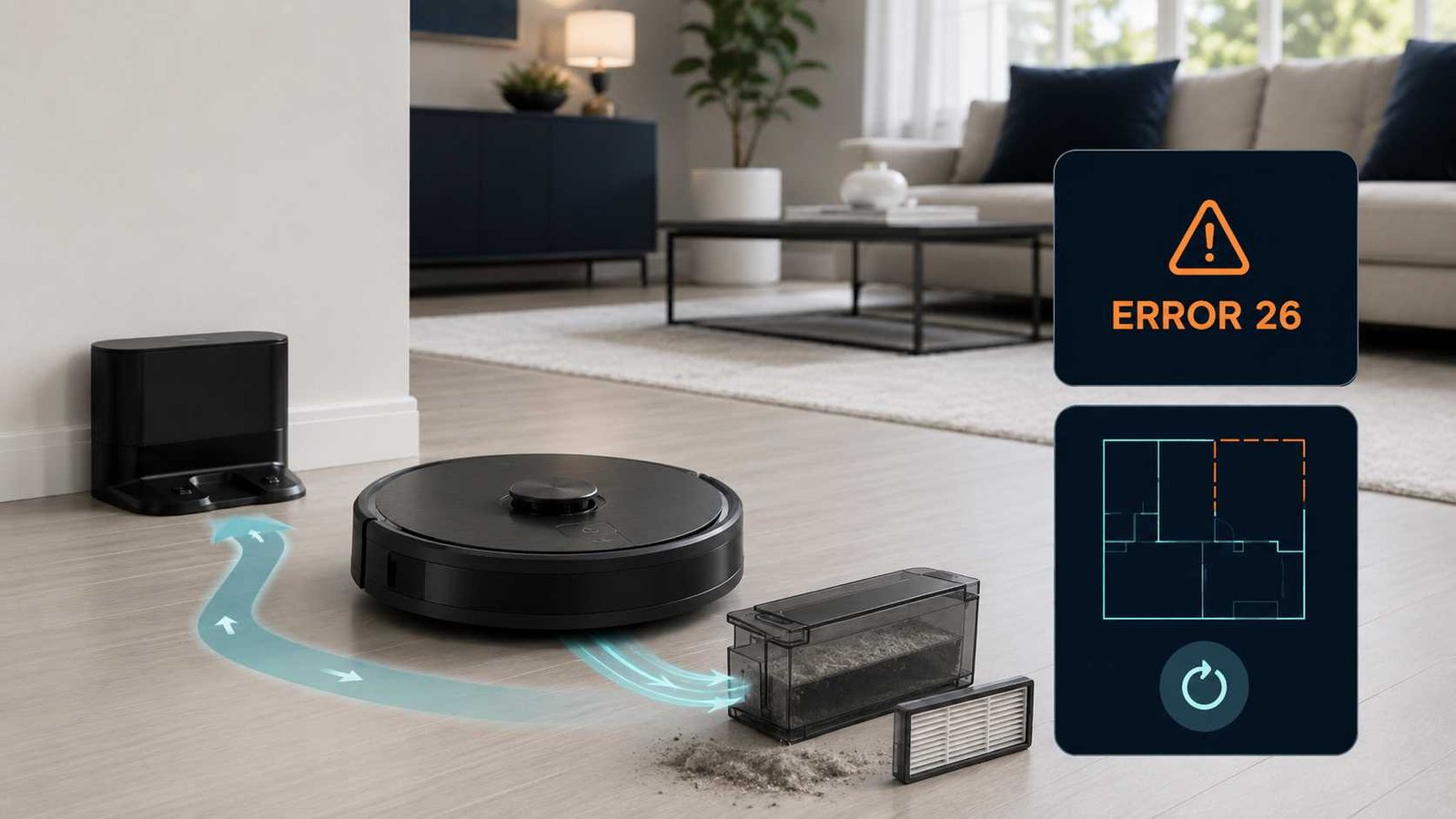
 Roomba Error 26 usually means the robot has detected insufficient airflow or a stalled vacuum system. On Roomba i Series, j Series, Combo 10 Max, and several newer model families, iRobot recommends checking the bin filter first. On the s Series, the same code is described more directly as a vacuum or blower motor problem.
Start by emptying the bin, cleaning the correct filter according to the model instructions, and removing debris from the vacuum path and rubber brushes. Do not repeatedly run the robot if it stops with Error 26 after these checks. A persistent stall may require a new filter, cleaning head module, vacuum module, or manufacturer service.
| Item | Details |
|---|---|
| Error code | Error 26 |
| Appliance | Robot vacuum |
| Brand | iRobot Roomba |
| Main meaning | Insufficient airflow or vacuum-system stall |
| Common first cause | Restricted or worn bin filter |
| Safe first check | Empty the bin and inspect the filter |
| Other possible causes | Blocked vacuum path, brush debris, stalled motor or failed cleaning head module |
| Can the robot still be used? | Perform only a short test after cleaning; stop if the error returns |
| Repair difficulty | Easy for routine cleaning; moderate for approved module replacement |
| Professional help | Needed for non-modular robots, warranty repairs, or persistent motor faults |
What Does Roomba Error 26 Mean?
On Roomba i Series, j Series, Combo 10 Max, and several current Roomba families, Error 26 means the vacuum is experiencing insufficient airflow. The robot may describe the condition as a vacuum stall and may warn that the filter could be clogged.
On the Roomba s Series, iRobot describes Error 26 as a condition in which the vacuum or blower motor is not functioning correctly. The official s Series error chart also identifies a possible filter clog.
This difference matters. Error 26 does not automatically prove that the motor has failed.
A dirty filter can reduce the air moving through the vacuum system. A blockage can also increase resistance until the robot detects a stall. If airflow checks and a new filter do not solve the problem, a cleaning head or vacuum module fault becomes more likely.
Does Error 26 Mean the Vacuum Motor Has Failed?
Not necessarily.
For most affected i and j Series robots, iRobot’s first recommendation is to clean or replace the bin filter. The manufacturer only moves toward cleaning head module replacement when the error continues after the filter has been replaced and the robot has been rebooted.
A motor or module problem becomes more likely when:
- The filter has been replaced rather than merely tapped clean.
- The bin and visible vacuum path are clear.
- The rubber brushes and their end bearings are free of hair.
- The robot has been rebooted using the correct procedure.
- Error 26 returns immediately during a short test.
- The normal vacuum sound is absent, unusually weak, rough, or intermittent.
These symptoms can guide the next step, but they do not confirm which internal component has failed. Electrical or internal motor diagnosis should be left to iRobot support or a suitable repair service.
Error 26 Meaning by Roomba Family
| Roomba family | Official meaning or emphasis | Likely next action |
|---|---|---|
| i Series | Insufficient airflow or vacuum stall | Clean or replace filter, reboot, then assess cleaning head module |
| j Series | Insufficient airflow or vacuum stall | Clean or replace filter, reboot, then assess cleaning head module |
| Combo 10 Max | Insufficient airflow or vacuum stall | Clean or replace filter, clear airflow path and reboot |
| s Series | Vacuum or blower motor not functioning correctly | Clean filter, reboot and seek service if the fault continues |
| 100/1000 and 200/2000 Series | Insufficient airflow | Follow model-specific filter and reboot instructions |
| Plus 400, Plus 500 and Max 700 Series | Insufficient airflow | Check the model’s bin, filter and airflow-care guide |
The exact filter construction and reboot method can differ between generations. Identify the robot from its product label or app before washing any filter, ordering a part, or holding buttons for a reset.
Common Symptoms of Error 26
A Roomba with Error 26 may:
- Leave its dock and stop after travelling a short distance.
- Start the brushes but produce little or no vacuum sound.
- Stop during a cleaning job and show a red light or app warning.
- Pick up less dust, crumbs or pet hair than normal.
- Leave debris behind despite normal movement.
- Run again after cleaning but report the code a few minutes later.
- Continue showing the error after the old filter has been tapped clean.
The robot’s movement and brush rotation can appear normal even when airflow through the vacuum section is restricted.
Most Likely Causes
1. A dirty bin filter
Fine dust can build up inside the filter media even when the visible surface does not look heavily blocked. Tapping the filter may remove loose debris, but an old or deeply loaded filter may still restrict airflow.
2. A worn or damaged filter
A filter can become less effective or more restrictive with age. If Error 26 returns after cleaning, iRobot recommends trying a replacement filter before moving to module replacement.
3. A full or incorrectly installed bin
An overfilled bin can interfere with airflow. The bin, filter and bin door must also be installed correctly so air moves through the intended path.
4. Debris in the vacuum path
Hair, lint, paper fragments and compacted dust can collect around the opening between the cleaning head and bin.
5. Hair around the rubber-brush ends
Hair can wrap around the square and hexagonal brush pegs or collect under the removable bearings. iRobot includes these areas in its official poor-pickup maintenance procedure.
6. A stalled vacuum motor
The motor may not start, may slow under load, or may stall after beginning a cleaning job. This becomes more likely when the airflow path is clear and a new filter does not help.
7. A failed cleaning head or vacuum module
On supported modular i and j Series robots, the vacuum system is part of a replaceable cleaning head module. On s Series robots, the relevant part and service procedure are different.
How to Fix Roomba Error 26
1. Stop the cleaning job
Move the robot away from the dock and place it on a stable surface.
Allow it to stop completely before removing the bin or turning it over. If the motor sounded rough, hot or strained, let the robot cool before continuing.
2. Empty the dust bin
Remove the bin and empty all loose debris.
Check the bin opening and the point where it meets the robot. Remove visible lint or compacted material using a dry cloth or the cleaning tool supplied for the robot.
3. Remove and inspect the filter
On classic Roomba e, i and j Series robots and Combo 10 Max, remove the filter from the bin and tap it gently against a waste container. These filters are not designed to be washed or exposed to liquid.
Inspect the filter for:
- Heavy grey dust that does not tap out
- Torn or damaged filter material
- Bent edges
- Moisture
- Incorrect seating in the bin
Replace the filter when it remains heavily restricted, damaged or damp.
Important: Some newer Roomba families use different filter designs. For example, iRobot states that selected Essential-series filters may be rinsed, while many classic filters must remain dry. Always follow the care instructions for the exact model rather than assuming every Roomba filter is washable.
4. Clean the bin correctly
For e, i, j and Combo 10 Max bins, remove the filter before rinsing the bin.
The bin may be rinsed by hand with warm water, but it is not dishwasher safe. Let it dry completely before reinstalling the dry filter. Moisture left inside the bin or filter area can damage the robot or cause debris to form a paste.
Do not reinstall the bin while it is damp.
5. Clean the rubber brushes
Turn the robot over and open the cleaning head door.
Remove both multi-surface rubber brushes. Clear hair and debris from:
- The brush surfaces
- The square brush peg
- The hexagonal brush peg
- The removable end bearings
- The spaces beneath the bearings
- The brush compartment
Match each brush end to the correct shape when reinstalling it.
6. Check the visible vacuum path
With the brushes and bin removed, inspect the visible air passage between the cleaning head and dust bin.
Remove loose debris carefully. Do not push tools deep into the motor housing, remove the impeller cover, apply lubricant, or dismantle the blower.
7. Reassemble the robot
Make sure:
- The filter is fully seated.
- The bin door is closed.
- The bin clicks into position.
- Both rubber brushes rotate freely.
- The cleaning head door is latched.
- No damp parts have been reinstalled.
8. Reboot the Roomba
A reboot can clear an error after the physical cause has been corrected. It does not delete maps, schedules or normal cleaning preferences.
Use the correct timing for the model:
| Model family | Manual reboot |
|---|---|
| Roomba i Series | Remove from dock and hold CLEAN for 20 seconds |
| Roomba j Series | Remove from dock and hold the button for 9 seconds |
| Roomba Combo 10 Max | Remove from dock and hold the button for 9 seconds |
| Roomba s Series | Remove from dock and hold CLEAN for about 20 seconds |
| Mini, 100/1000, 200/2000, Plus 400, Plus 500 and Max 700 | Hold POWER for about 10 seconds, then hold again for 3 seconds to power on |
The robot may take up to around 90 seconds to finish rebooting.
A reboot is different from a factory reset. Do not factory-reset the robot simply to clear Error 26. A factory reset removes stored information and should normally be considered only after advice from iRobot support.
9. Perform a short test
Place the robot on a clear hard floor and start a brief cleaning job.
Listen for the normal vacuum sound and check whether debris is being collected. Stop the test if Error 26 returns, the motor repeatedly starts and stops, or the robot produces an abnormal grinding or scraping sound.
What If Error 26 Returns After Cleaning?
Replace the filter
Cleaning an old filter does not prove that it can still pass enough air.
Install a compatible new filter and perform another reboot and short test. Use an official or correctly specified replacement for the exact model.
Check the bin again
Confirm that the filter is installed in the correct orientation and that the bin is fully seated. A missing or poorly installed filter can cause a separate bin or filter warning and can also affect airflow.
Determine whether the robot is modular
Some iRobot cleaning head modules are designed to be replaced as a complete unit. However, newer versions of selected i1, i3, i5 and Combo i5 robots may be non-modular.
iRobot states that if the eighth character of the serial number is N or Z, the cleaning head module is not replaceable through the normal modular procedure. These robots should be referred to iRobot support rather than forced apart.
Consider cleaning head module replacement
For a compatible modular robot, iRobot says the cleaning head module may need replacement when Error 26 continues after the bin filter has been replaced and the robot has been rebooted.
The battery must be removed before removing or installing the cleaning head module. Follow the official procedure for the exact series and stop if the construction does not match the guide.
Contact support for s Series motor faults
Because iRobot describes s Series Error 26 as a vacuum or blower motor that is not functioning correctly, persistent errors after filter cleaning and rebooting should be handled through model-specific support or repair.
What Not to Do
Do not:
- Wash a classic e, i, j, Combo 10 Max or s Series filter.
- Reinstall a damp filter or bin.
- Run the robot repeatedly while the vacuum motor is stalled.
- Spray water or cleaning liquid into the vacuum path.
- Push screwdrivers or metal objects into the blower opening.
- Lubricate the vacuum impeller.
- Bypass sensors or electrical connections.
- Force open a robot identified as non-modular.
- Order a cleaning head module without checking compatibility.
- Perform internal voltage or circuit-board testing at home.
Routine cleaning and approved modular replacement are different from internal motor repair.
Error 26 Compared with Other Roomba Vacuum Errors
| Error | General distinction |
|---|---|
| Error 8 | Poor vacuum suction |
| Error 11 | Vacuum motor not activating |
| Error 26 | Vacuum stall or insufficient airflow |
| Error 27 | Vacuum motor overheating, potentially involving a clogged filter or impeller problem |
These descriptions come from iRobot’s model-specific error charts. The wording can vary slightly by series, so the message shown in the app should take priority.
When to Contact iRobot or a Repair Service
Stop home troubleshooting and seek support when:
- Error 26 returns with a new filter.
- The vacuum motor makes no sound.
- The motor sounds rough, unbalanced or unusually loud.
- The robot smells hot or burnt.
- The cleaning head or motor area becomes unusually hot.
- The robot is still under warranty.
- The serial number identifies a non-modular construction.
- The correct replacement module is unavailable in your country.
- There is visible liquid contamination or internal damage.
- Module replacement would require work beyond the official user procedure.
Parts availability and warranty handling differ between the United States, Canada, the United Kingdom, Ireland, Australia and New Zealand. Owners outside North America should use the appropriate country page or authorised support channel.
Frequently Asked Questions
Can a dirty filter cause Roomba Error 26?
Yes. iRobot identifies insufficient airflow and a possible filter clog as primary reasons for Error 26 on several Roomba families. Cleaning or replacing the bin filter is the recommended first action.
Why does Error 26 return when the filter looks clean?
Fine dust can remain inside the filter media even when the outer surface appears clean. Try a compatible new filter before assuming the vacuum motor has failed.
Can I wash my Roomba filter?
It depends on the model. Filters used by classic e, i, j, Combo 10 Max and s Series robots are generally not designed to be washed. Selected newer models may use a rinseable filter. Check the exact model’s official care instructions.
Does rebooting delete my Roomba map?
No. A normal reboot does not delete maps, schedules or cleaning preferences. A factory reset is different and removes stored information.
How long should I hold the button to reboot a Roomba?
The timing varies. The i Series normally uses 20 seconds, the j Series and Combo 10 Max use 9 seconds, and the s Series uses about 20 seconds. Several newer families use a 10-second power-button procedure.
Can I continue using the robot with Error 26?
Clean the filter, bin, brushes and vacuum path, then perform only a short test. Do not continue repeated cleaning jobs if the error returns because the vacuum system is still stalling or detecting inadequate airflow.
Does Error 26 require a new cleaning head module?
Not always. Replace the filter and reboot the robot first. On supported modular models, the cleaning head module may be required only when those steps do not clear the error.
How do I know whether my Roomba cleaning head is replaceable?
Check the serial number and official model instructions. For selected newer i1, i3, i5 and Combo i5 robots, an N or Z as the eighth serial-number character indicates a non-modular robot.

Emily Carter is an Australian home-appliance safety editor with 9 years of experience researching washers, air conditioners, refrigerators, and coffee machines. She checks troubleshooting steps for accuracy, regional model differences, and homeowner safety before publication.